
Something not working? Most problems have a quick fix below. If yours doesn't, send us your logs: one file with everything the team needs to find the cause, with your private details hidden. Then post it in #bug-reports on the Discord.
Send us your logs
How you make the file depends on whether the game still opens.
- The game opens
- On the login screen open Settings > Send us your logs > Save logs to my Desktop. After a crash, the window that says the game closed unexpectedly has the same Save logs to my Desktop button.
- The game won't start at all
- Follow newschool99.com/help/logs/ (works on Windows, Mac and Linux, takes about a minute without the game), or collect the files by hand below.
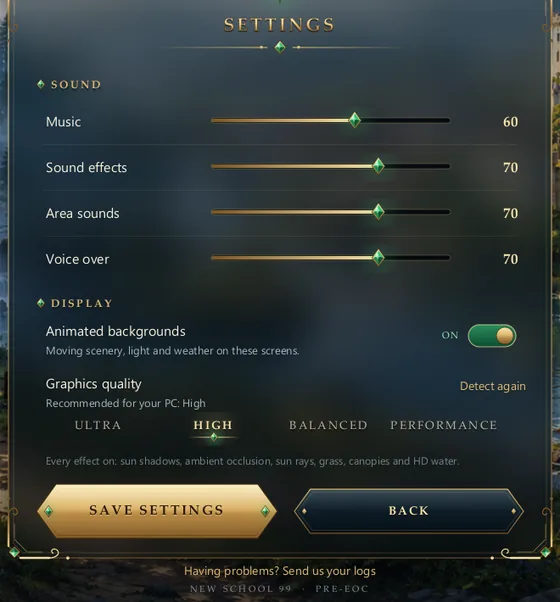
Either way you get one file on your Desktop, named like NS99-logs-2026-11-10-2115.zip. Then:
- Open #bug-reports on the Discord and click New Post.
- Give it a short title, like Game closes when I enter the world.
- Drag the file in, and say what you were doing and when it happened. A helper replies in your post.
What's in the file: the launcher and game logs, crash reports, your graphics settings, and your system basics (OS version, processor, memory, graphics card and driver). What's hidden: your user name, computer name, game login, emails and IP addresses. Your password is never written into these files.
Only paste commands from newschool99.com/help/logs/. New School 99 staff will never DM you a command to run or ask for your password.
Report a bug from in game
If the game is running, the Report a bug button next to the minimap (or Menu > Report a bug, or ::bugreport) sends a report straight to the team. Say what went wrong and what you were doing, and send it. Include my game logs (recommended) and Attach a screenshot of the game are ticked for you; untick either if you like. See Reporting bugs and players.
Common problems
| Problem | What to do |
|---|---|
| The game crashes at every login | Close the game, delete preferences.dat in %USERPROFILE%\.newschool99\caches\darkan\LIVE (Windows) or ~/.newschool99/caches/darkan/LIVE (Mac and Linux), and start again. It only resets your graphics settings. |
| The game crashed after you changed a graphics setting | Start it again: the next start steps down to safer settings by itself and tells you what changed. You can also change any graphics setting on the login screen before you log in (Settings > All graphics settings). See Graphics settings. |
| Can't reach the servers, but the Discord says the game is up | A VPN or an antivirus DNS filter is blocking the connection. Turn off the VPN or the DNS filter (for example a VPN's ad blocker), or set your DNS to Cloudflare or Google. |
| Update required or a new version is available | Click Update now, or close the game and start it again from the launcher. See updates. |
| The launcher keeps downloading the same update | Your antivirus is holding a game file. Add %LOCALAPPDATA%\NewSchool99 as an antivirus exclusion and start the game once. See antivirus. |
| Windows protected your PC | Click More info, then Run anyway. See Installing the game. |
| "New School 99" Not Opened (Mac) | Click Done, then System Settings > Privacy & Security > Open Anyway (or Control-click > Open on macOS 13 and 14). See opening on a Mac. |
| Waiting for a space | The world is full. You go in by yourself as soon as a space opens, or pick another world. |
| A map area won't load | The game retries it instead of crashing (since update 2.1.14), so you can always log back in. If it keeps happening in one place, send your logs. |
| Forgot your password | Forgot password? on the login screen, or newschool99.com/reset/. See Accounts and passwords. |
| The game runs slowly | Pick a lighter preset or lower the frame rate limit. See Graphics settings and System requirements. |
| A laptop runs the game on its weak graphics | Login screen Settings > Graphics card > Strong card. See laptops with two graphics chips. |
| Stuck in the intro story | Log out and back in: you carry on where you were, and a part that fails twice is skipped. See Intro story. |
On a Mac
- First-open warning: click Done, then System Settings > Privacy & Security > Open Anyway on macOS 15+ (or Control-click > Open on macOS 13 and 14). See opening on a Mac.
.dmgwon't open: download the.zipfrom the same card on newschool99.com, unpack it, and drag New School 99 to Applications.- Repair, rollback or reinstall: quit and open the app again to re-check files, roll back one update, or clear
~/Library/Application Support/New School 99and reinstall. See repair and reinstall.
On Linux
- AppImage won't start (
libfuse.so.2missing): run with--appimage-extract-and-run, unpack once with--appimage-extractand run./squashfs-root/AppRun, or use the.tar.gzdownload from newschool99.com. See No FUSE. - Wayland vs X11, GPU drivers & audio: make sure hardware OpenGL 3.3+ acceleration is active (not
llvmpipe), and PipeWire or PulseAudio is running for OpenAL audio. See Linux graphics, Wayland, X11 and audio. - Repair, rollback or uninstall: relaunch to re-check files, pass
--rollbackto step back one update, or remove~/.local/share/newschool99(and~/.newschool99to clear settings). See repair, rollback and uninstall.
Do it by hand
If the logs page can't run on your PC, collect the files yourself.
On Windows:
- Press Windows + R, type
%LOCALAPPDATA%\NewSchool99\logsand press Enter. - Drag
client.log,client.1.logandlauncher.loginto your post in #bug-reports. - If the game showed a crash window, press Windows + R again, type
%USERPROFILE%\.newschool99\logsand add the newestcrash-...txtfile.
On a Mac:
- In Finder press Shift + Command + G, type
~/Library/Application Support/New School 99/logsand press Return. - Drag
launcher.log,client.logand, if it is there,client.1.loginto your post in #bug-reports. - If the game showed a crash window, press Shift + Command + G again, type
~/.newschool99/logsand add the newestcrash-...txtfile.
On Linux:
- Open
~/.local/share/newschool99/logs(or$XDG_DATA_HOME/newschool99/logs; press Ctrl + H in your file manager to show hidden folders). - Drag
launcher.log,client.logand, if it is there,client.1.loginto your post in #bug-reports. - If the game crashed, open
~/.newschool99/logsand add the newestcrash-...txtfile (and anycrashed-run-...logorhs_err_pid...log).
These files can show your user name and other players' names. Open them in Notepad, TextEdit or a text editor first if that matters to you.