
New School 99 is free to play. On Windows, you download a small installer from newschool99.com, and it puts the New School 99 launcher on your PC. The launcher downloads the game and keeps it up to date.
It runs on Windows 10 and 11 (64-bit), macOS 13+ (one universal download for Apple silicon — tested, macOS 15+ for Metal HD — and Intel Macs on OpenGL HD, not tested on real Intel hardware), and 64-bit x86_64 Linux (AppImage or .tar.gz, OpenGL 3.3+, glibc 2.35+). On a Mac? Follow Mac. On Linux or Steam Deck? Follow Linux. See System requirements.
Installing
- Open newschool99.com and click Download (Free for Windows, see Mac on a Mac, or see Linux on Linux).
- Run the installer you downloaded.
- If Windows shows "Windows protected your PC", see the next section.
- Open New School 99. The launcher downloads the game the first time, then opens the login screen.
- Make an account on the login screen: see Accounts and passwords.
"Windows protected your PC"
The installer is new, so Windows SmartScreen doesn't recognise it yet. Click More info, then Run anyway.
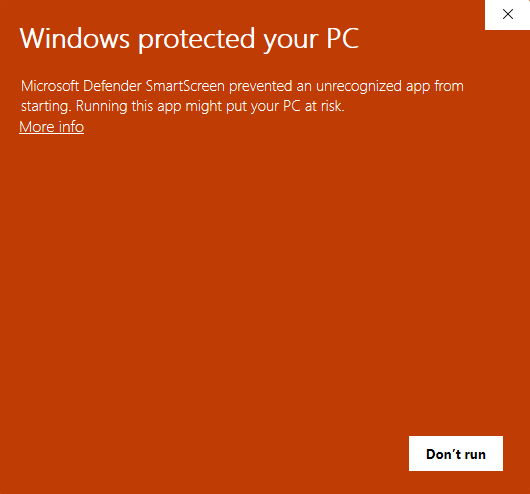
Step 1: click More info. 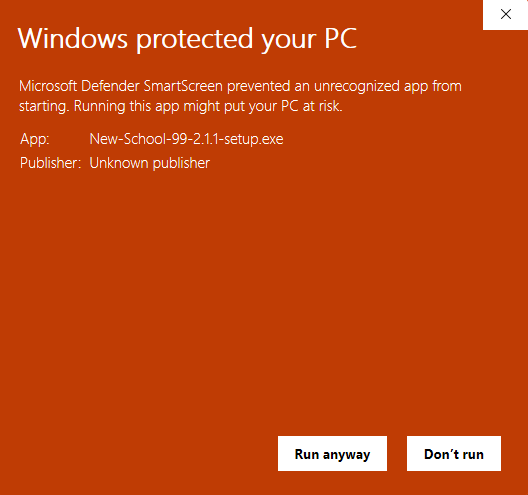
Step 2: click Run anyway.
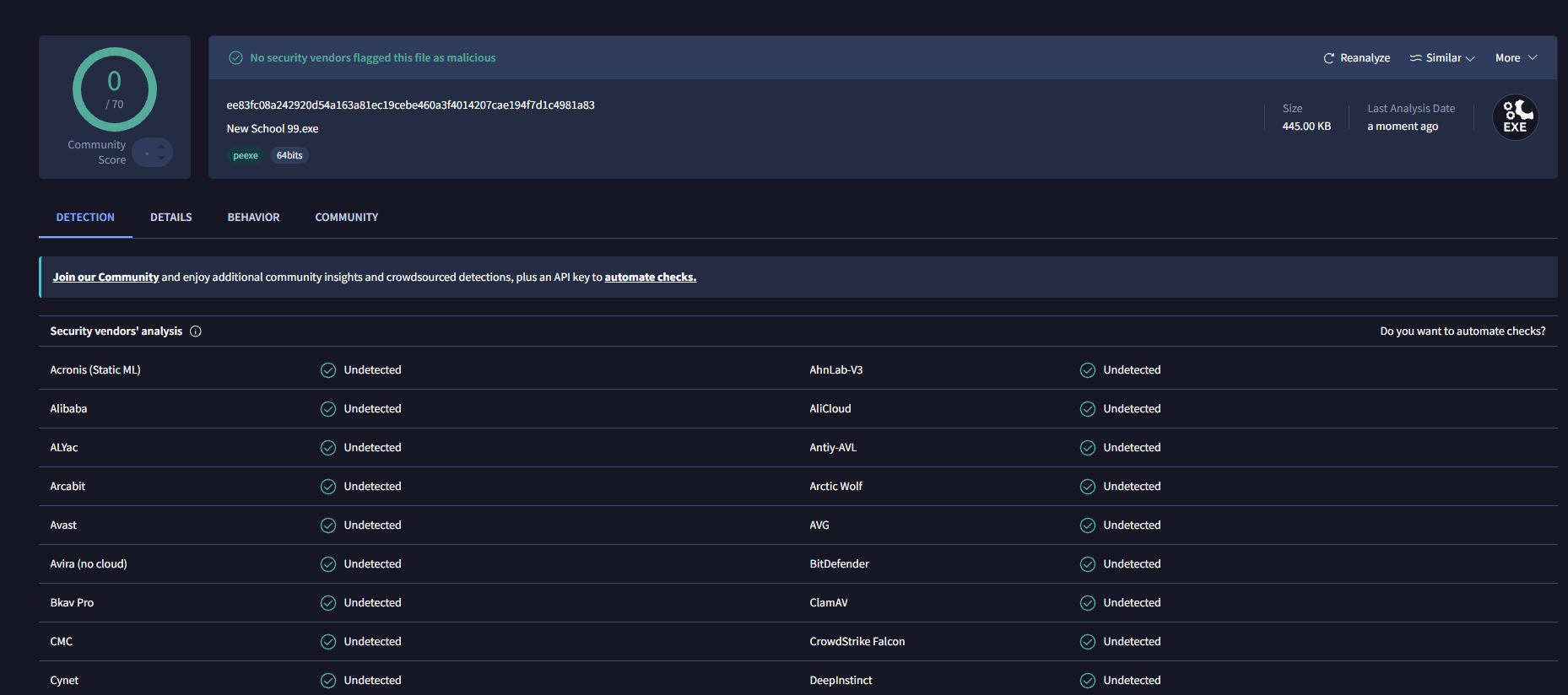
If you'd like to check the installer first, run it through VirusTotal, or ask in the Discord.
Updates
The launcher updates the game by itself when you start it.
- "Update required" on the login screen: a new version is out and your version can't log in any more. Click Update now, or close the game and start it again from the launcher.
- An "Update ready" banner while you play: click Restart now, or finish what you're doing and restart the game later.
- Your character, bank and progress are kept on the server, so updates never touch them.
Antivirus
Some antivirus programs scan or hold game files while the launcher installs an update. Since Launcher 4 (update 2.1.15) the launcher keeps everything it has downloaded, retries a locked file for a few seconds, and says plainly what went wrong.
- A file is locked or keeps re-downloading: add the game folder
%LOCALAPPDATA%\NewSchool99as an exclusion in your antivirus, then start the game again. - Your antivirus removed a game file: restore it from your antivirus' history (in Windows Security: Protection history, then Allow on device), add the exclusion above, and start the game again.
Things to know
- Free, no Jagex account. New School 99 has its own accounts; see Accounts and passwords.
- Where it lives: the launcher and the game are in
%LOCALAPPDATA%\NewSchool99. - The game won't start or crashes? See Troubleshooting.