
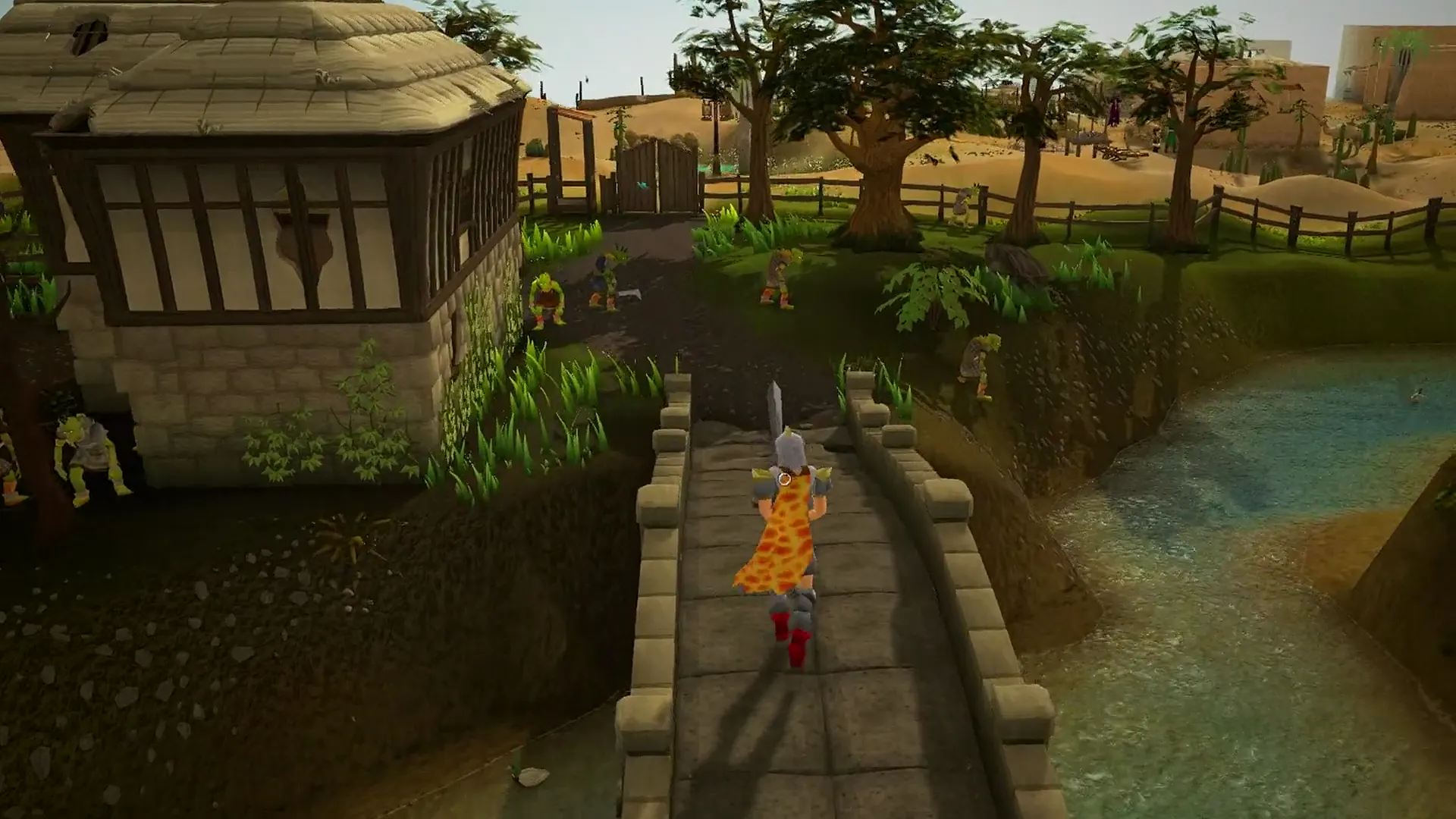
New School 99 is pre-EoC RuneScape rebuilt in HD: sun shadows, HD textures, grass, water and tree canopies on the modern renderer. The graphics settings pick how much of that your PC draws and how fast.
You can change them in two places, and they are the same settings: Settings on the login screen (before you log in), and Graphics Options in game.
Quality presets
A preset sets every graphics option at once. The first time you log in, a card shows the one Recommended for your PC, with Apply (for example Apply High), Choose another and, if you already had settings, Keep current. See System requirements for what each preset needs.
| Preset | What it does |
|---|---|
| Ultra | Every effect on, with grass and sun shadows reaching further and Ultra water. |
| High | Every effect on: sun shadows, ambient occlusion, sun rays, grass, canopies and HD water. |
| Balanced | Near sun shadows, grass and canopies; lighter post effects. |
| Performance | The world and its textures without the heavy effects, for the smoothest play. |
- Ultra draws grass out to 64 tiles (High: 44) and a little denser, and sun shadows out to 96 tiles (High: 72). Nothing near the camera changes from High.
- Strong PCs move up to Ultra on their next start if the game picked their preset (update 2.1.16). A preset you picked yourself is kept.
- No preset limits your frame rate. The frame rate limit does that (below).
- Change one option and the game shows you have custom settings: your own mix stays until you pick a preset again.
- Detect again, on the login screen's graphics settings, brings the recommendation card back.
Where to change it
- Login screen: Settings, then the Graphics quality row, or All graphics settings for every option. Each change is saved at once and used when you log in.
- In game: Graphics Options, with a button for each preset, including ULTRA.
Frame rate limit
By default the frame rate follows your monitor: a 144 Hz monitor gets up to 144 fps. You can set your own limit on the login screen: Settings > All graphics settings > Frame rate limit.
| Choice | What you get |
|---|---|
| Match monitor (default) | Up to your monitor's refresh rate. If the game can't read it, up to 120 fps. |
| 30, 60, 120, 144, 165 or 240 fps | Up to that rate on any monitor. |
| Unlimited | As fast as your PC draws. |
The row shows what you get right now, for example 240 Hz monitor: 240 fps. Your choice is kept until you change it.
Full screen
Full screen fills the whole monitor the game is on, with no title bar and the taskbar hidden. It does not change your display resolution.
- Press Alt + Enter to switch it on and off at any time.
- Or in game: Graphics Settings > Screen Sizing > Full screen. Resizable puts the window back the way it was.
- The game remembers it: if you close the game in full screen, it starts in full screen.
HD texture pack
The HD texture pack gives the world sharper textures on the HD renderer on Windows, Mac and Linux. It downloads by itself in the background (about 135 MB) the first time, with no restart, and it is on by default.
- To turn it off or on: login screen Settings > All graphics settings > HD textures: Auto, On or Off.
- On a machine with too little video memory or memory for it, Auto leaves it off.
Building roofs
Game Settings > Display > Building roofs chooses when roofs are hidden: Default (what your preset does), Hide when inside, Always hide or Always show. It is saved with your account. See Game Settings.
All graphics settings
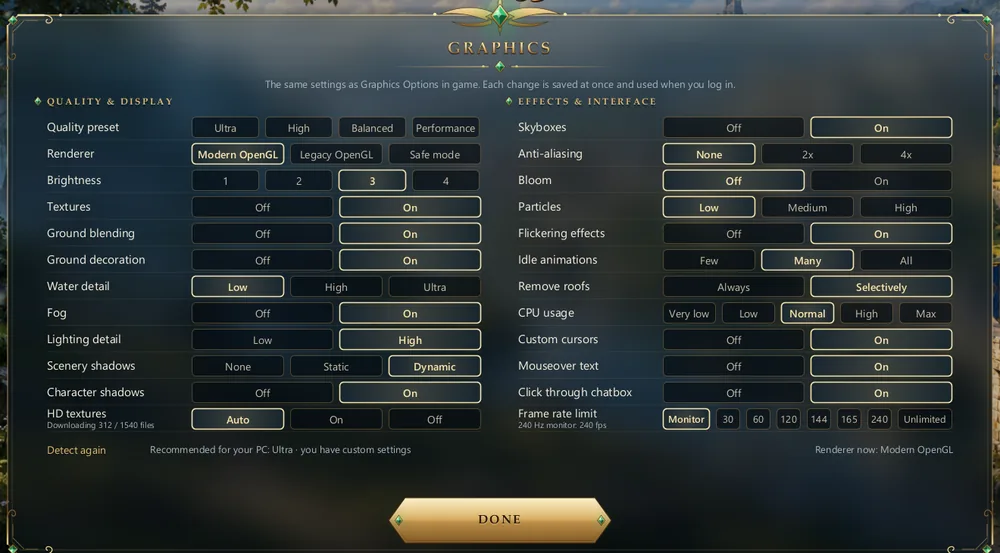
The login screen's All graphics settings page has every option from the in-game Graphics Options, so you can fix a setting before you log in.
| Quality and display | Effects and interface |
|---|---|
| Quality preset | Skyboxes |
| Renderer: Modern OpenGL, Legacy OpenGL or Safe mode | Anti-aliasing (applies from the next start) |
| Brightness | Bloom |
| Textures | Particles |
| Ground blending | Flickering effects |
| Ground decoration | Idle animations |
| Water detail (Ultra water needs the modern renderer) | Remove roofs |
| Fog | CPU usage |
| Lighting detail | Custom cursors |
| Scenery shadows | Mouseover text |
| Character shadows | Click through chatbox |
| HD textures | Frame rate limit |
Some options don't work on every renderer: the page shows N/A on this renderer for those. On Apple silicon Macs (tested; macOS 15+), the game runs on Metal HD by default with automatic fallback to OpenGL HD; macOS 13–14 and Intel Macs (macOS 13+; not tested on real Intel hardware) run on OpenGL HD. See Mac.
Live fires and wisps (HD)
Since update 2.1.17 the HD renderer shows live fires: braziers, torches, lamps, candles and bonfires burn with real flames, embers, smoke and flickering light, and in daylight a fire warms nearby walls. How many fires light at once depends on your quality tier: 16 on High and Ultra, 8 on Balanced and 4 on Performance.
In caves, dungeons and other dark places, small companion wisps light every player so nobody is a black silhouette. They only appear in the dark, fade in and out over about a second, and hide when the camera is zoomed right in.
Sharper textures: 16x anisotropic filtering keeps HD pack textures sharp at low camera angles.
Things to know
- Running slowly? If the game stays well below 36 fps for minutes, it offers to switch you one preset lower, once per preset. You can keep your current one.
- The game crashed after a change? The next start steps down to safer settings by itself and tells you what changed. See if your graphics driver crashes and Troubleshooting.
- Laptop on the wrong graphics chip? Login screen Settings > Graphics card. See laptops with two graphics chips.
- Camera and interface options (interface size, camera sensitivity, crosshair height) are in Game Settings and Keybinds.