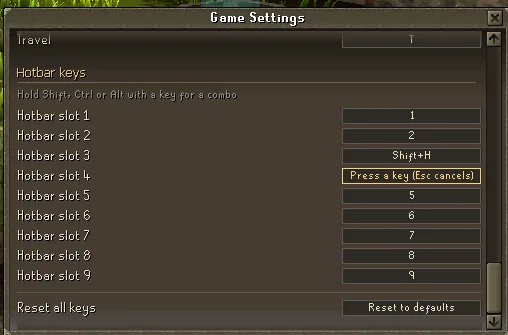
Keybinds are the keys you move, open panels and use your hotbar with. You can change almost every one of them in Game Settings (Esc > Settings), in three sections at the bottom of the list: Movement keys, Panel keys and Hotbar keys.
Click a key's row, then press the new key. The change is saved on your account, so your keys follow you to any PC.
Movement keys
| Row | Default |
|---|---|
| Forward | W |
| Back | S |
| Strafe left | A |
| Strafe right | D |
| Sprint (hold) | Shift |
| Walk (hold) | Ctrl |
| Dodge / roll | Space |
| Cursor / camera | C |
- Movement always keeps a key. If you give a movement key to another movement action, the two swap.
- Movement wins over panels. If you give a movement action a key that a panel uses, the panel loses its key, and the chat tells you to set a new one in Panel keys.
- AZERTY keyboard? The row AZERTY layout (ZQSD) moves you with Z Q S D in one click (Quests moves from Q to A). Click it again (Back to W A S D) to undo.
Panel keys
| Row | Default | Opens |
|---|---|---|
| Inventory | Tab | Your inventory |
| Equipment | E | Worn equipment |
| Stats | K | Your skills |
| Prayer | P | Prayers |
| Magic | B | Your spellbook |
| Quests | Q | The Quests panel |
| Friends | F | Friends list |
| Combat | X | Attack styles |
| World map | M | The World map |
| Pantheon | G | The Pantheon |
| Travel | T | The Travel window |
| Skill mode | N | Switches Woodcutting and Mining between Action and Classic (Action and Classic skilling) |
- A taken key swaps. Pick a key another panel already has, and the two panels swap keys.
- Shift and Ctrl can't open a panel. They are modifier keys.
- The keys show on the bar. The Codex bar at the bottom right shows each panel's current key.
Hotbar keys
Each of the nine Combat hotbar slots has its own key, 1 to 9 by default. The section says Hold Shift, Ctrl or Alt with a key for a combo: you can use combos such as Shift + 1, Shift + E, Ctrl + H or Alt + H.
- Picking a key another slot uses swaps them, and the chat says what each slot is now ("Hotbar slot 1 is now Shift+1.").
- A plain key also works with Shift or Ctrl held, so you can use a slot while you sprint or walk. It does not work with Alt held.
- F1 to F9 always use slots 1 to 9, whatever you set here.
- Alt + 1, Alt + 2 and Alt + 3 stay reserved for your Melee, Ranged and Magic loadouts.
- The hotbar shows your keys: its key tags and tooltips show the key or combo you chose.
- Game Settings > Combat hotbar > Hotbar keys can be set to F1-F9 only, which turns these keys off.
Keys you can't use
The game refuses a key that would clash, and the chat says why:
| Key | Why |
|---|---|
| A movement key, for a panel or hotbar slot | "W is your Forward key." |
| A key a hotbar slot uses, for a panel or movement | Change it in Hotbar keys first |
| A panel key on its own, for a hotbar slot | "E opens Equipment: hold Shift, Ctrl or Alt with it, or change it in Game Settings > Panel keys." |
| Your lock-on key (R or V if you picked one) | "R is your lock-on key." |
| 1 to 9 and F1 to F9, for a panel or movement | They are hotbar keys |
| Enter | "Enter opens the chat line." |
| Esc | "Esc opens the Menu." Pressing Esc while you change a key cancels the change. |
| Arrow keys | "Arrow keys turn the camera." |
| Alt, F10, Alt + F4 | Used by Windows, or close the game |
Reset
The last row, Reset all keys (Reset to defaults), puts every movement, panel and hotbar key back to the defaults above.
Other keys and settings
- Camera sensitivity: Game Settings > Controls > Camera sensitivity is a slider from 0.30x to 3.00x (default 1.00x). Right-click it to reset to 1.00x.
- Lock-on button: Game Settings > Controls > Lock-on button: middle mouse (default), mouse button 4, mouse button 5, R or V. If you pick a side mouse button for lock-on, that button stops rolling; the other side button and your Dodge / roll key still roll.
- Bug report key: the bug report window has no key by default. You can set one in the window's footer.
- Controller buttons are rebound in the Controller window, not here: see Controller settings. The controller's D-pad and action wheel follow the panel keys you set here.
Things to know
- The old name was Keybinds. Since 2.1.15 the keys live in three sections of Game Settings: Movement keys, Panel keys and Hotbar keys. Older guides that said movement, roll, sprint and hotbar keys can't be changed are out of date.
- Keys don't fire while you type. A key held while the chat line closes does nothing until you let go of it.
See also
- Controls - every default key
- Combat hotbar
- Game Settings
- Controller support
What links here (39)
- Accounts and passwords
- Action and Classic skilling
- Area loot
- Bank
- Character Studio
- Chat
- Codex menu
- Collection log
- Combat hotbar
- Controller support
- Controls
- Dodge roll
- Experience rates
- FAQ
- Game screen
- Game Settings
- Getting help
- Glossary
- Grand Exchange
- Graphics settings
- Installing the game
- Intro story
- Linux
- Mac
- Money pouch
- Name plates and hitsplats
- Patch notes
- Player commands
- Player market
- Players-only items
- Price checker
- Reporting bugs and players
- RuneScape version
- System requirements
- Tool belt
- Troubleshooting
- View stats
- What doesn't work yet
- Where to start