New School 99 can be played with a controller. Xbox, PlayStation, Nintendo and most other pads work, and controller support is on by default: plug one in and play. You can switch between the controller and your keyboard and mouse at any time.
If you already play through Steam Input, DS4Windows or reWASD, nothing changes. The game notices and steps aside, so your setup works as before.
Buttons are shown as Xbox / PlayStation. Hover over an icon to see its name.
Limitations
- The controller's buttons can't select everything. Some things in the world can't be reached with
 /
 ,
 /
 or
 /

 /
 . For those, use mouse mode: open a panel, like the inventory, click
 , move the mouse onto the thing with
 , then press / to left-click or / to right-click.
- / goes to the most likely thing. It skips signposts and plain furniture so that it picks what you most likely want. To reach something else nearby, step through with / /, or press / for all the options on your target.
Buttons
| Button | What it does |
|---|---|
| Move. Tilt further to run. |
 | Sprint |
| Turn the camera |
 /  | Attack. Hold it to keep attacking. In Woodcutting and Mining it swings at the glowing circle in the middle of your screen. |
 /  | Dodge roll |
| Lock on to an enemy. Flick to switch target. With a panel open, like the inventory, it switches on mouse mode instead. |
| / | Use what's in front of you: Bank on a banker, Trade on a shopkeeper, Talk-to on a person |
| / | All the options on that target |
| / / | Step through the things near you |
 /  | The action wheel: world map, travel, Pantheon, stats, chat, friends, quests, Combat and Skill mode |
 /  | Inventory  /  , Equipment  /  , Prayer  /  , Magic  /  |
Hold  /  | Your combat hotbar |
| Hold / + | Switch the camera's zoom level, when no panel is open |
 /  | Use the mouse: shows the mouse cursor, and pressing it again goes back to the camera. Same as the C key. |
 /  | The Menu. Hold it for the Controller window. |
Moving a stick cancels a walk to something, and / leaves a conversation at once.
/ never attacks: / attacks, and / talks, trades and uses things (since 2.1.11).
Combat hotbar
Hold /, then:
- / / / / fire slots 1 to 4: your special attack, your two god powers, then slot 4.
- / fires slots 5 to 8.
- / fires slot 9.
- / switches between your Melee, Ranged and Magic bars.
The hotbar's key tags show these buttons while you play on the controller. More on Combat hotbar.
Action wheel
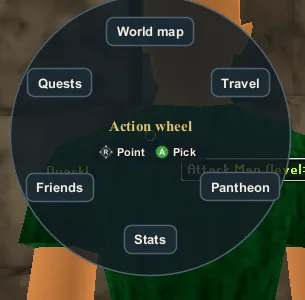
/ opens the action wheel. Hold /, point at a slice and let go to pick it; or tap /, pick with or the / and press /. / closes it. You keep moving with while it is open.
The slices, clockwise from the top: World map, Travel, Pantheon, Stats, Chat, Friends, Quests, Combat (while Combat has a key), and a Skill mode slice that switches Woodcutting and Mining between Action and Classic (see Action and Classic skilling). Each slice opens what its key opens, so it follows the keys you set in Game Settings > Panel keys. The D-pad's panel buttons follow them too.
Menus and windows
The bank, Grand Exchange, shops, dialogues and the Menu all work on /:
- / selects.
- / shows the options.
- / is the quick option, like Withdraw-All.
- / goes back.
- / / switch tabs.
Chat, searches and amounts get an on-screen keyboard with a number pad. You can play the whole intro on a controller.
Button prompts on the hotbar and around the game switch to your controller's buttons (Xbox, PlayStation or Switch) as soon as you pick it up, and back to keys when you use the keyboard.
Bank deposits
With the bank open, hold /, then press:
- / to deposit your inventory,
- / to deposit your worn items,
- / to deposit your familiar's items.
In a deposit box, / + / deposits the inventory and / + / your worn items. Tapping / on its own still pages up. While / is held, the other buttons don't do their normal job, so / doesn't close the bank.
Loot window
In the Loot window, the / picks a row, / takes the picked row, / takes everything and / closes the window.
Mouse mode
With a panel open, like the inventory, click to switch on mouse mode. then moves the mouse, so you can use anything you could with a real mouse, including things in the world that the controller's buttons can't select.
- / is left click.
- / is right click, for all the options.
Without a panel open, locks on to an enemy instead.
Controller settings
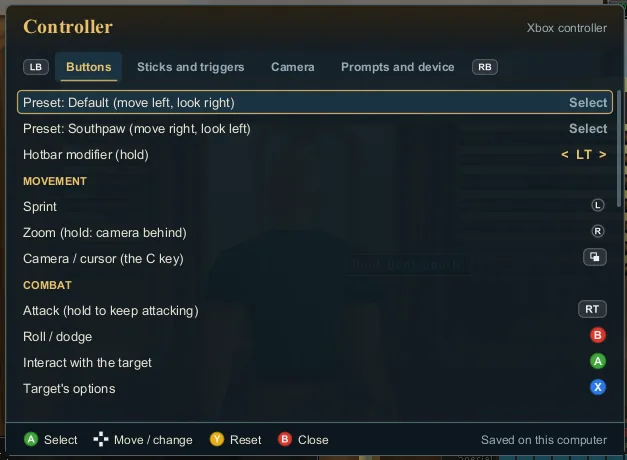
Hold / to open the Controller window. It has four pages: Buttons, Sticks and triggers, Camera and Prompts and device. There you can:
- Rebind any button. Pick one that's already taken and the two swap. / stays the Menu and can't be rebound.
- Choose the Hotbar modifier (hold): the button you hold for the hotbar (/ by default, or /, / or /).
- Choose the Default or Southpaw preset (Southpaw swaps the sticks: move right, look left).
- Set stick deadzones, the tilt below which you walk, the trigger press point, how sprint works (Toggle (click the left stick), Hold the left stick or Full tilt sprints), camera speed, response curve and invert, and aim assist.
- Move the crosshair up or down with Crosshair height (on the Camera page, -25% to +25% of the screen in steps of 5). It moves the mouse-look crosshair too, and your clicks go where it is drawn.
- Choose which button prompts to show (Auto, Xbox, PlayStation, Nintendo, Generic or Keyboard), and whether / or / confirms.
- Turn native controller support Auto, On or Off.
- Reset everything to the defaults.
Game Settings > Controls > Controller settings opens the same window.
These settings are saved on your PC.
Things to know
- Aim assist only leans controller attacks towards monsters, never towards other players. For PvP see PvP.
- Lock-on is a free combat button. Where free combat doesn't apply, zooms the camera instead.
See also
- Controls - the keyboard and mouse layout
- Keybinds
- Combat hotbar
- Woodcutting and Mining on a controller
What links here (27)
- Accounts and passwords
- Action and Classic skilling
- Area loot
- Bank
- Character Studio
- Codex menu
- Combat hotbar
- Controls
- Experience rates
- FAQ
- Game Settings
- Getting help
- Glossary
- Graphics settings
- Installing the game
- Intro story
- Keybinds
- Linux
- Mac
- Main Page
- Patch notes
- Player commands
- RuneScape version
- System requirements
- Troubleshooting
- What doesn't work yet
- Where to start